Git-ting Started: Your Code’s Time Machine

🚀
Let’s be real for a second: we’ve all been there. You’re deep in the zone, coding away, and you decide to "just quickly clean up" some files. Ten minutes later, your project is broken, your "Undo" button (Cmd+Z) has reached its limit, and you’re staring at the screen wondering where it all went wrong.
If you’ve ever felt that cold spike of panic, I have good news: You don’t have to live like this.
Meet Git.
It’s often described as "version control," which sounds incredibly boring. Instead, I like to think of it as a Time Machine. Git gives you the freedom to mess up, experiment, and collaborate without ever worrying about losing your hard work.
Here is how to get it working for you.
The "Aha!" Moment: How Git Actually Works
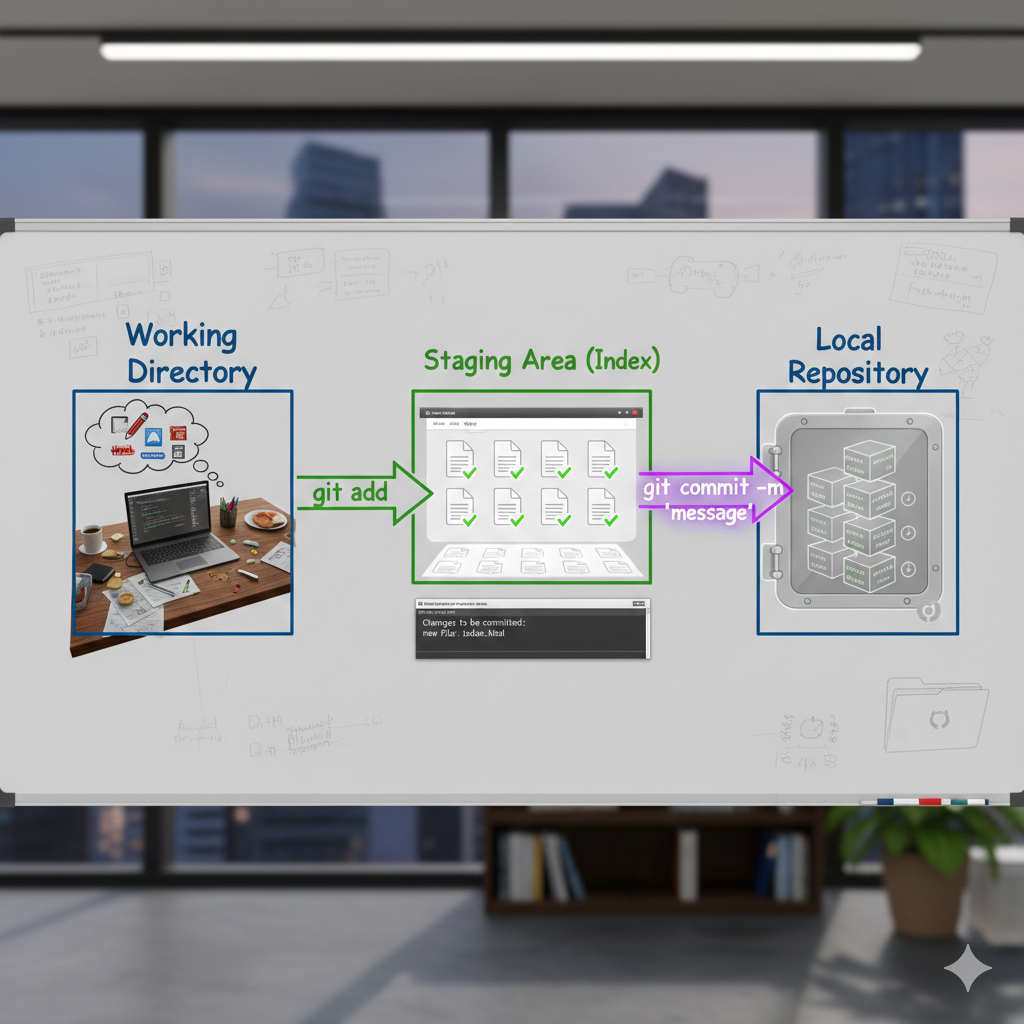
Before we touch the keyboard, let’s clear up a common hurdle. Git doesn't just "save" files; it moves them through three stages. Imagine you're taking a professional photo:
The Working Directory (The Studio): This is your messy desk. You’re moving things around, trying different poses, and editing code.
The Staging Area (The Viewfinder): You’ve found a shot you like. You’ve framed it, but you haven't pressed the shutter yet. This is where you tell Git, "I want this change to be saved."
The Repository (The Photo Album): You press the shutter. The photo is now permanently stored in the album with a timestamp.
Your First Git Session (The "Do-It-With-Me" Guide)
Let’s walk through a real-world example. Open your terminal—don't be intimidated, we’re only using a few simple commands.
1. The "Open For Business" Phase
Create a folder for a new project and jump inside.
mkdir my-dream-app
cd my-dream-app
Now, tell Git to start watching this folder:
git init
What happened? Git just set up a hidden "brain" inside your folder to remember everything you do from here on out.
2. Creating and Staging
Let's create a simple text file.
echo "Hello World" > index.txt
Now, ask Git what's going on:
git status
Git will yell at you in red: "Untracked files!" It sees your new file but isn't watching it yet. Let's move it to the "Viewfinder" (Staging Area):
git add index.txt
3. Making it Permanent (The Commit)
Now, let's take the "photo" and save it to our album.
git commit -m "My first save point"
The -m stands for "message." Always write a message that your "future self" will understand. "Fixed bug" is okay; "Fixed the broken login button on mobile" is a lifesaver.
The Power of the Time Machine 🕰️
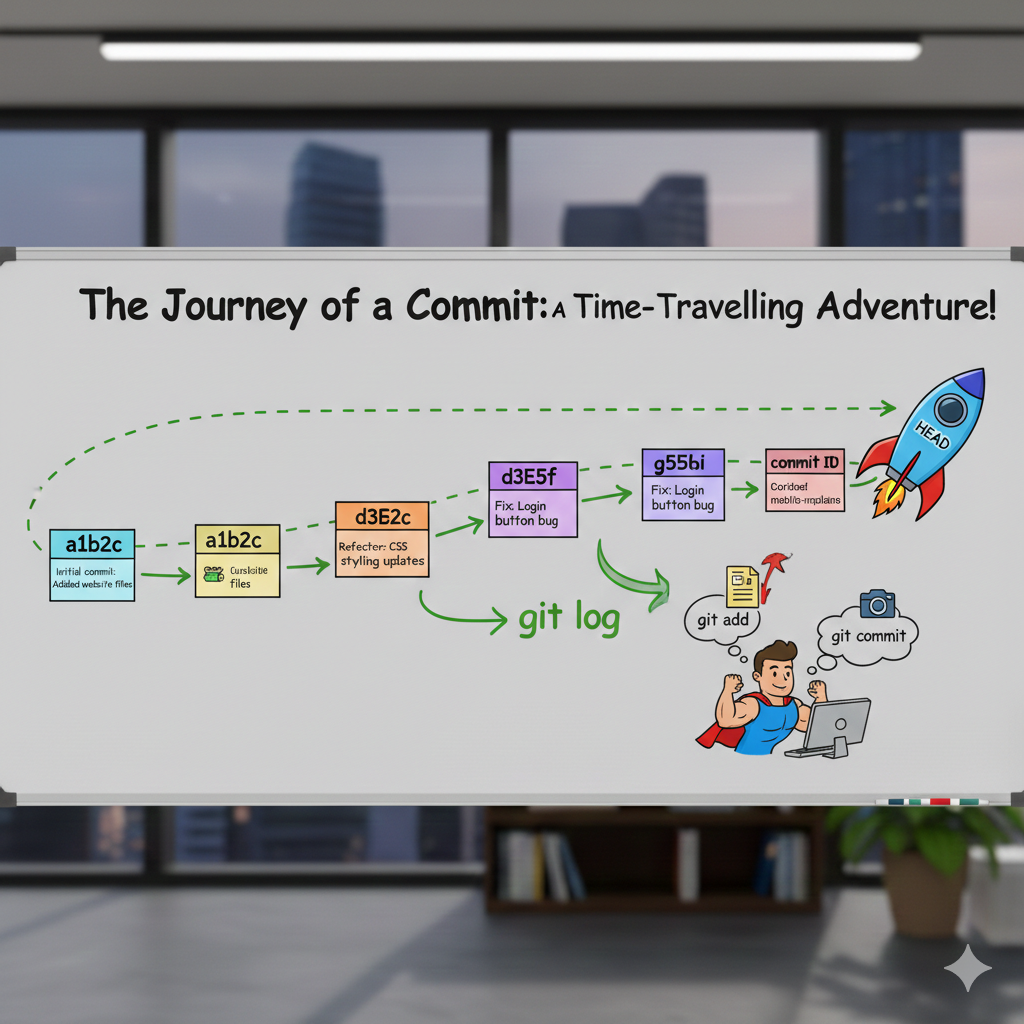
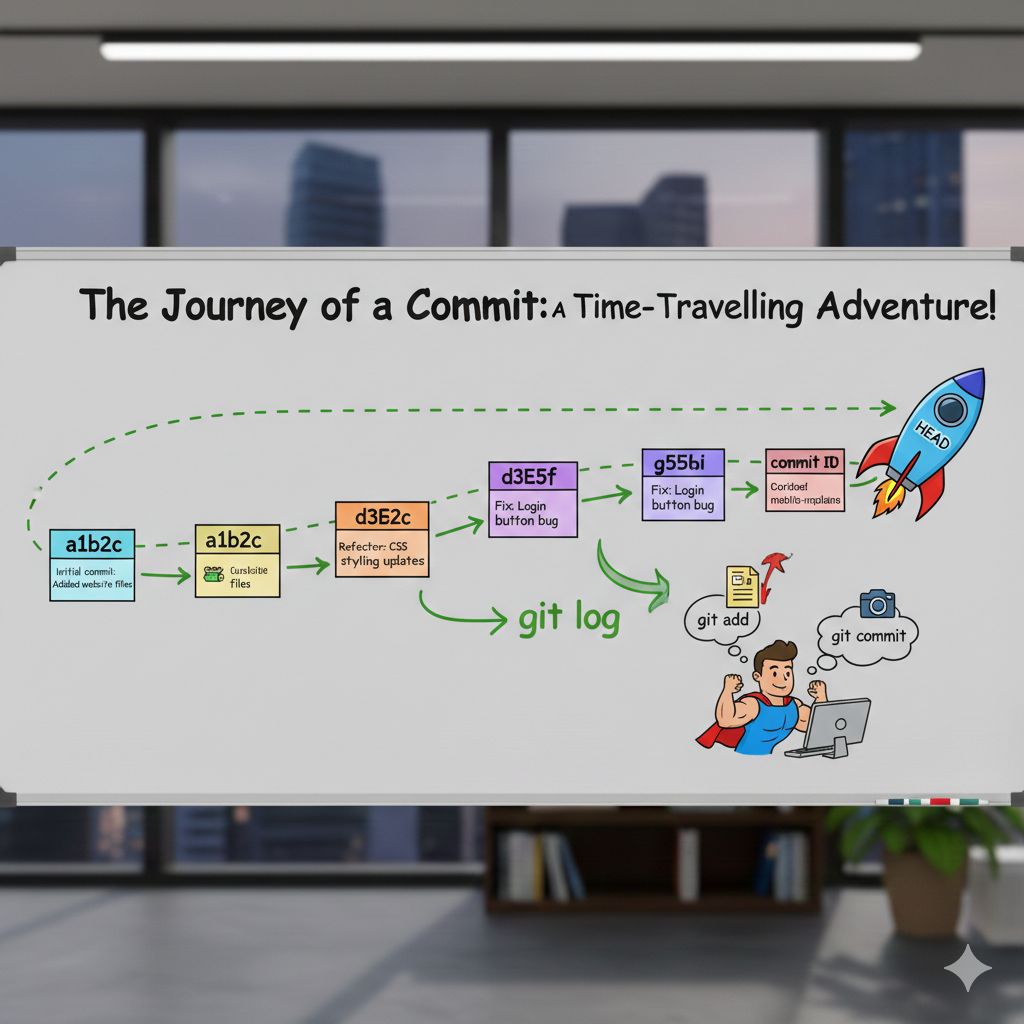
Let’s say you make a huge mistake. You delete half your code by accident. In the "Before Git" era, you’d be crying. In the "Git" era, you just check your Log.
git log
This shows you a list of every save point you’ve ever made. You can literally tell Git, "Hey, take me back to Tuesday at 2:00 PM," and your files will magically revert to exactly how they were then. No harm done.
3 Rules to Live By
To keep your Git experience smooth, follow these "unwritten" rules:
Commit Often: Don't wait until the end of the day. Small, frequent saves make the time machine much more accurate.
Status is your Best Friend: If you’re ever confused about what’s happening, just type
git status. It usually tells you exactly what to do next.Don't Fear the Terminal: It looks like something out of The Matrix, but it’s just a faster way to talk to your computer.
Final Thoughts
Learning Git is like learning to ride a bike. It feels wobbly at first, and you might "fall off" (get a weird error message), but once it clicks, you’ll never go back. You’ll code with a new sense of confidence, knowing that your "Time Machine" has always got your back.
What do you think? Ready to try your first commit? If you run into a weird error message, paste it here—I’d be happy to help you decode it!